What changed between two files
Compare two versions: the assistant lists the differences in plain words, explains a single change or writes the release notes.
PadLab++// moved from Windows to the Mac?
A tabbed text and code editor, and a clipboard history one shortcut away. Made for people coming from Windows: the same menus, the same habits, Mac keys. Native and very fast. And now with an AI assistant that fixes, translates and summarizes without leaving your Mac.
7 days with every feature, no credit card · macOS 14 or later · Apple silicon and Intel · AI assistant from macOS 26
// new in versions 1.3 and 1.4
PadLab++ and Clip Lab use Apple Intelligence, the model macOS keeps on your computer: they fix, translate, summarize and read the text in images. No account, no AI subscription, no text sent to a server.
Compare two versions: the assistant lists the differences in plain words, explains a single change or writes the release notes.
PadLab++Spelling and grammar, a more formal or more concise tone: on the selection or the whole file, with a single Undo.
PadLab++Clip LabInto English, Italian, Spanish, French, German and Portuguese, leaving Markdown, code and links untouched.
PadLab++Clip LabThe summary of a long document, or what a piece of code does, in a new tab.
PadLab++“Make it a table”, “extract the emails”, “turn it into a list”: you write it, the assistant does it.
PadLab++A screenshot becomes text: in Clip Lab you find it by searching for a word, in PadLab++ you paste it with ⌘V.
PadLab++Clip LabDescribe what to find, “emails ending in .com”, and the assistant writes the regular expression for Find.
PadLab++In Clip Lab a clip can be fixed, translated or summarized on the fly, then it goes straight where you're typing.
Clip Lab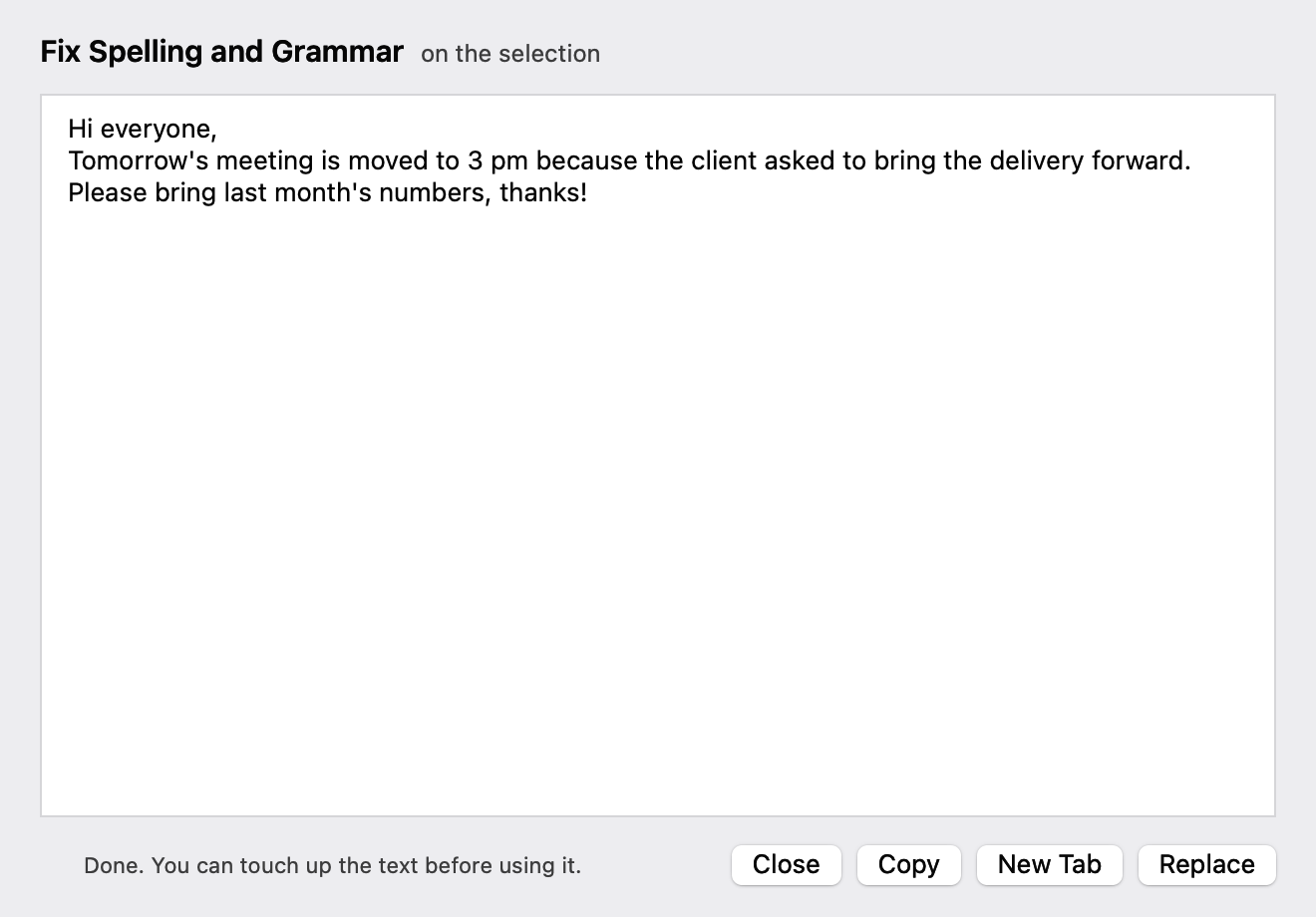
The assistant needs macOS 26 or later, a Mac with Apple silicon and Apple Intelligence turned on. On Macs that can't use it the AI commands simply don't appear, and everything else in the apps works as usual. Text from images works from macOS 14.
// your fingers already know
Menus in the same order — File, Edit, Search, View, Encoding, Language, Macro — and the features you used every day, on the key the Mac expects.
PadLab++if you used Notepad++
| Feature | Was | Now |
|---|---|---|
| Find | Ctrl+F | ⌘ F |
| Replace | Ctrl+H | ⌥ ⌘ F |
| Find in Files | Ctrl+Shift+F | ⇧ ⌘ F |
| Go to Line | Ctrl+G | ⌘ L |
| Duplicate Line | Ctrl+D | ⌘ D |
| Comment lines | Ctrl+Q | ⌘ / |
| Toggle bookmark | Ctrl+F2 | ⌘ F2 |
| Record a macro | Ctrl+Shift+R | ⌃ ⇧ R |
| Multiple cursors | Ctrl+click | ⌘ click |
| Column selection | Alt+drag | ⌥ drag |
Clip Labif you used Ditto
| Feature | Was | Now |
|---|---|---|
| Open the history | Ctrl+` | ⌥ ⌘ V |
| Search your clips | type | type |
| Paste the chosen item | Enter | ⏎ |
| Paste as plain text | — | ⇧ ⏎ |
| Paste the 3rd item | — | ⌘ 3 |
| Pin an item | — | ⌘ P |
| Edit a clip | Ctrl+E | ⌘ E |
| New clip | Ctrl+N | ⌘ N |
| Open in the editor | — | ⇧ ⌘ E |
| Close | Esc | esc |
Clip Lab's shortcut can be changed in its settings. On this page Ctrl ` works too: try it.
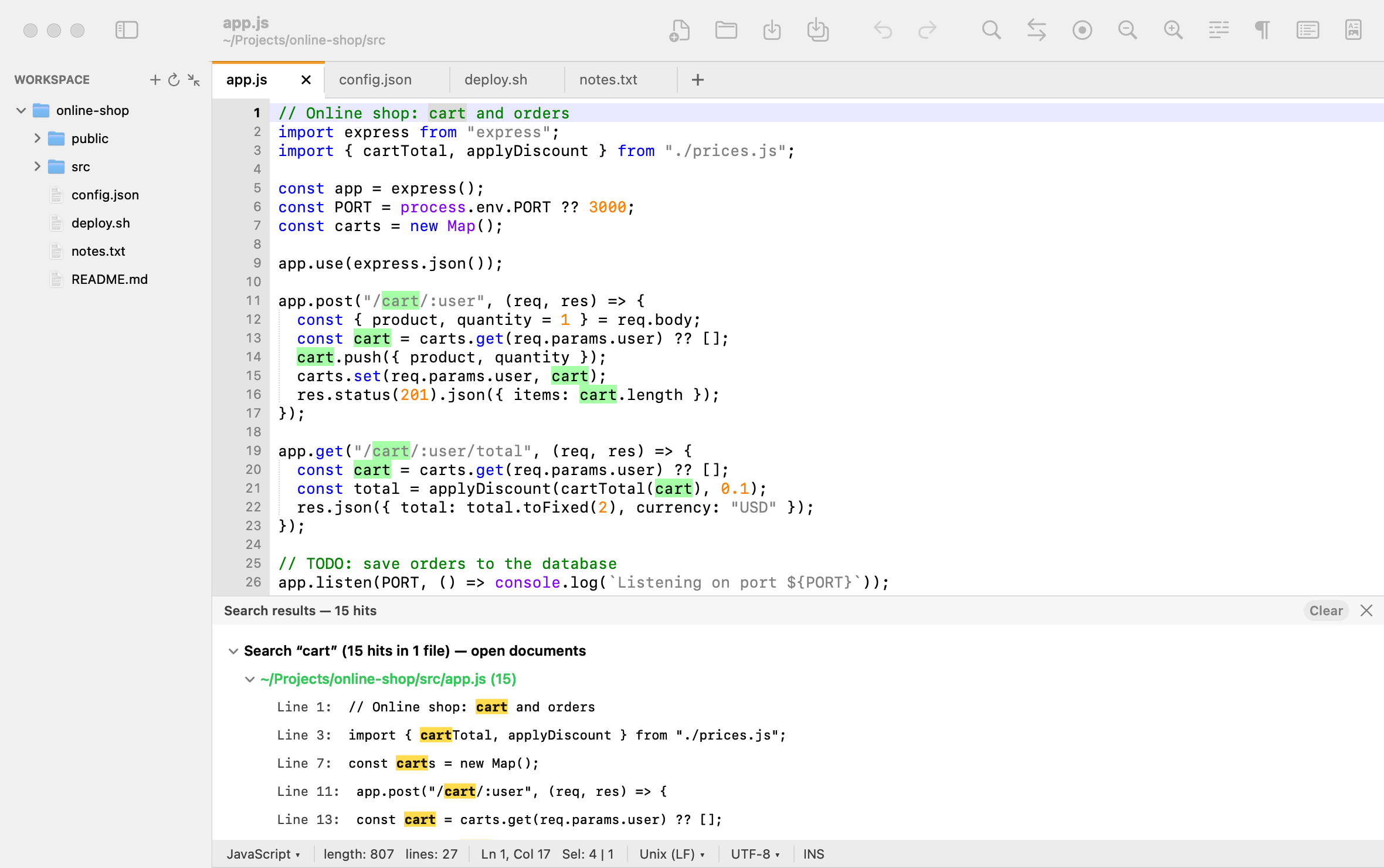
Tabs always in view, with a red dot on unsaved changes. Quit whenever you like: open it again and everything is back, even text you never saved. And when you need it, Find and Replace with regular expressions, across whole folders too.
The session comes back exactly as it was: tabs, cursor, bookmarks and text you never saved. A backup every few seconds.
Search and replace across whole folders, with filters like *.js !*.min.js. Double-click a result and you're on the right line.
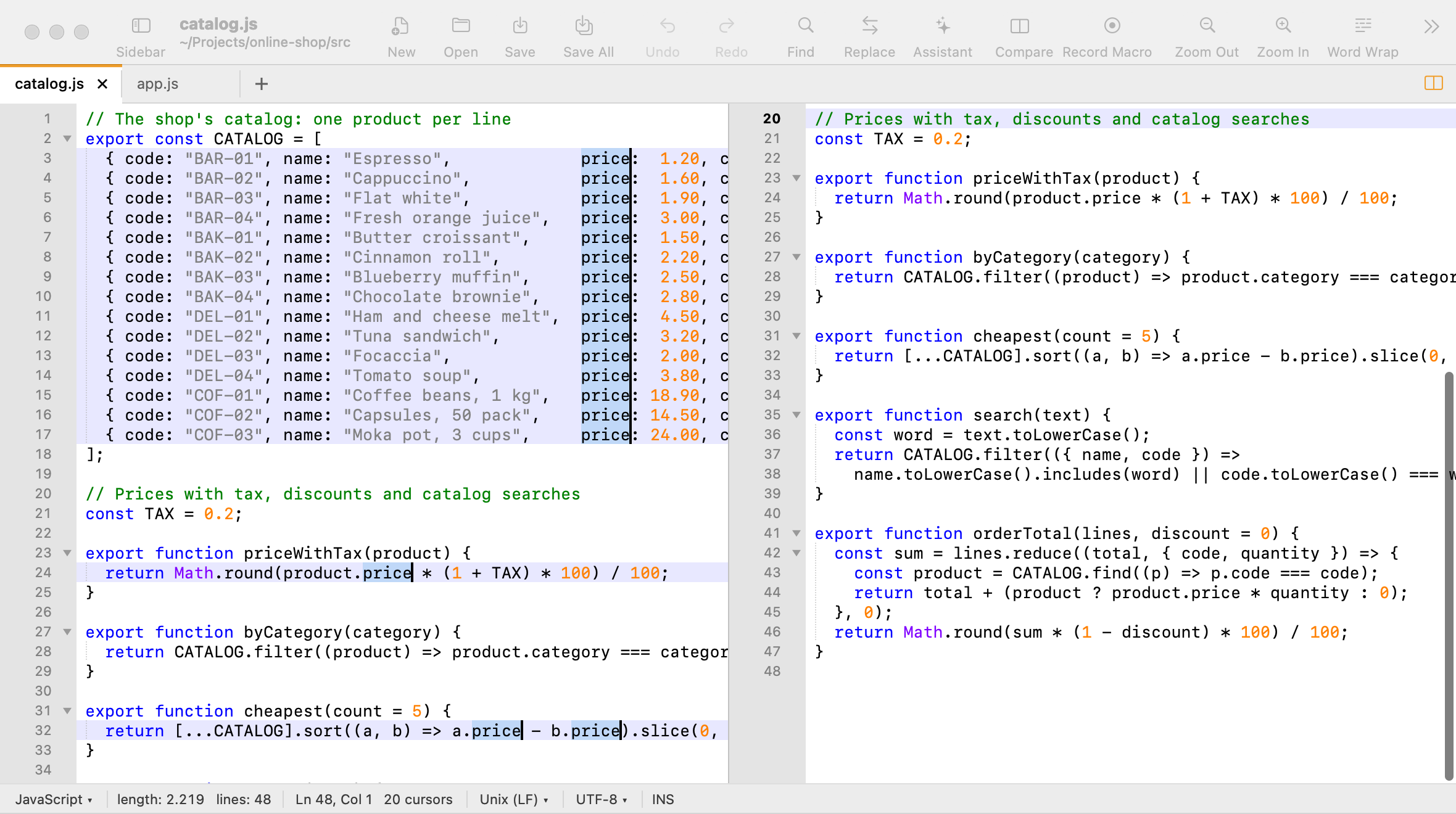
Two versions side by side and lined up, the differences colored word by word. A change moves from one side to the other in one click.
Fold functions, blocks, tags and Markdown headings from the margin, one at a time or all at once by level.
Normal, extended (\n, \t) and regex modes with groups. Count, mark, replace in every open document.
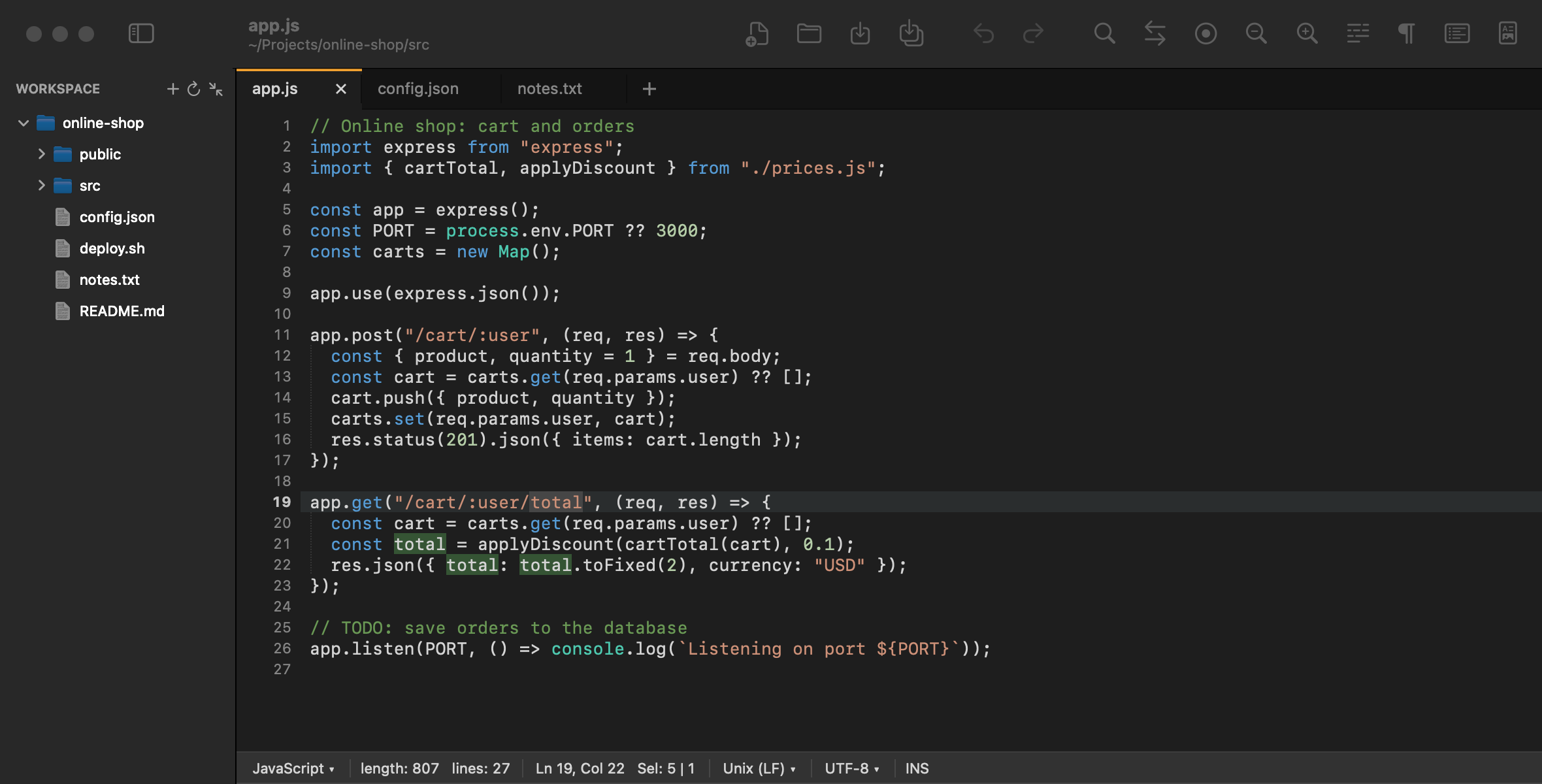
From C++ to YAML, recognized by extension or first line. The classic theme too, and automatic light/dark.
Windows files open without garbled characters. Convert to UTF-8 or UTF-16, with or without BOM, and between CRLF and LF.
Record a series of edits and repeat it to the end of the file. Mark lines with ⌘F2, jump with F2.
Format or minify JSON keeping the key order, Base64, URL, HTML entities, MD5 and SHA hashes.
Fixes, translates, summarizes and explains code with Apple Intelligence, on the Mac. In the menu, the right-click menu and the toolbar.
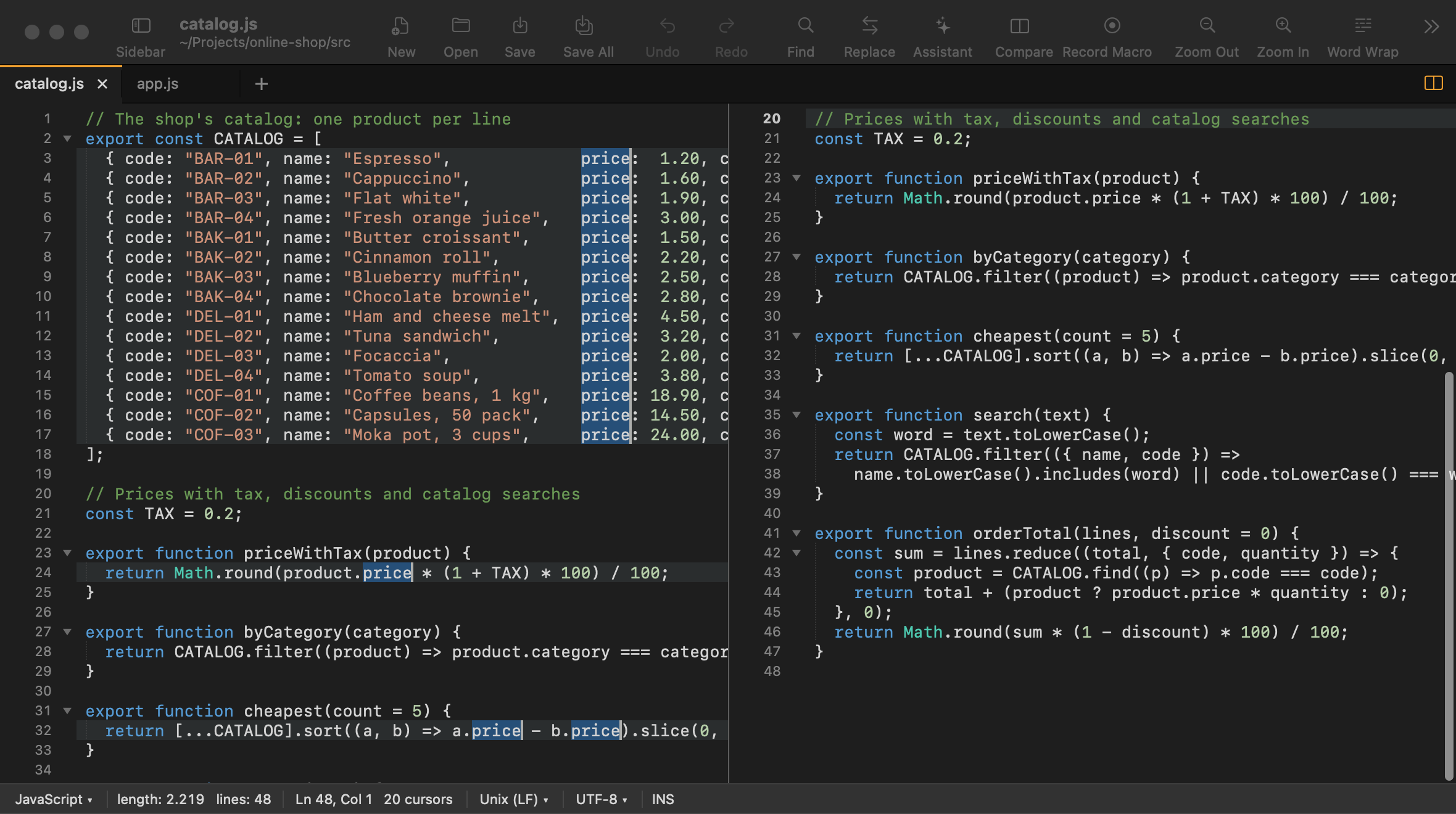
More cursors with ⌘-click, a column with ⌥ + drag, every occurrence with ⌃⌘G. And the same file in two views.
A 5 MB file with 100,000 lines opens in under a second; syntax colors arrive in the background.
// new in version 1.5
With multiple cursors you rename a variable everywhere, fill in a column or fix ten lines with a single keystroke. With the split view you keep an eye on the top of the file while you work at the bottom. A single Undo puts everything back, cursors included.
// new in version 1.1
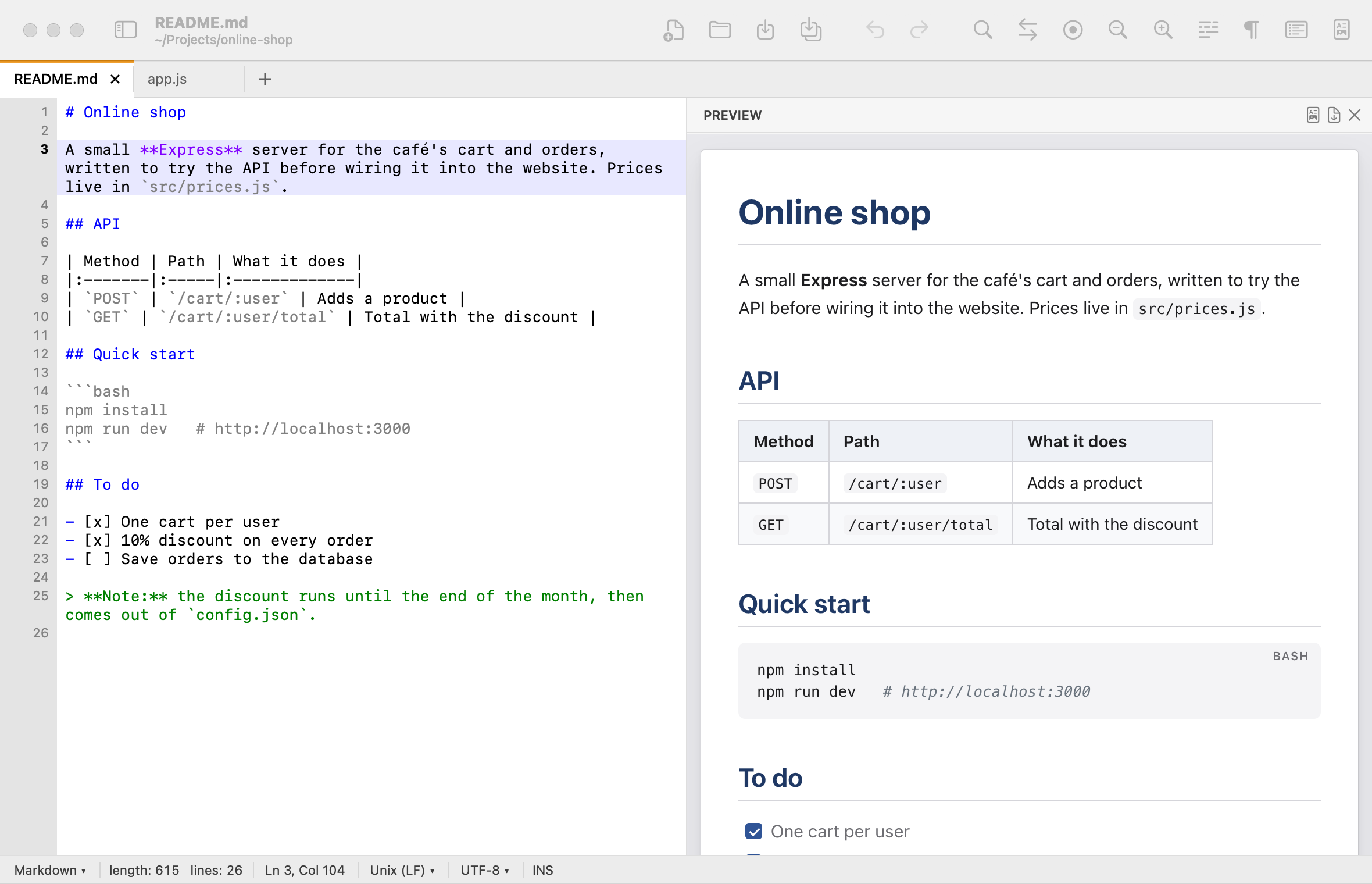
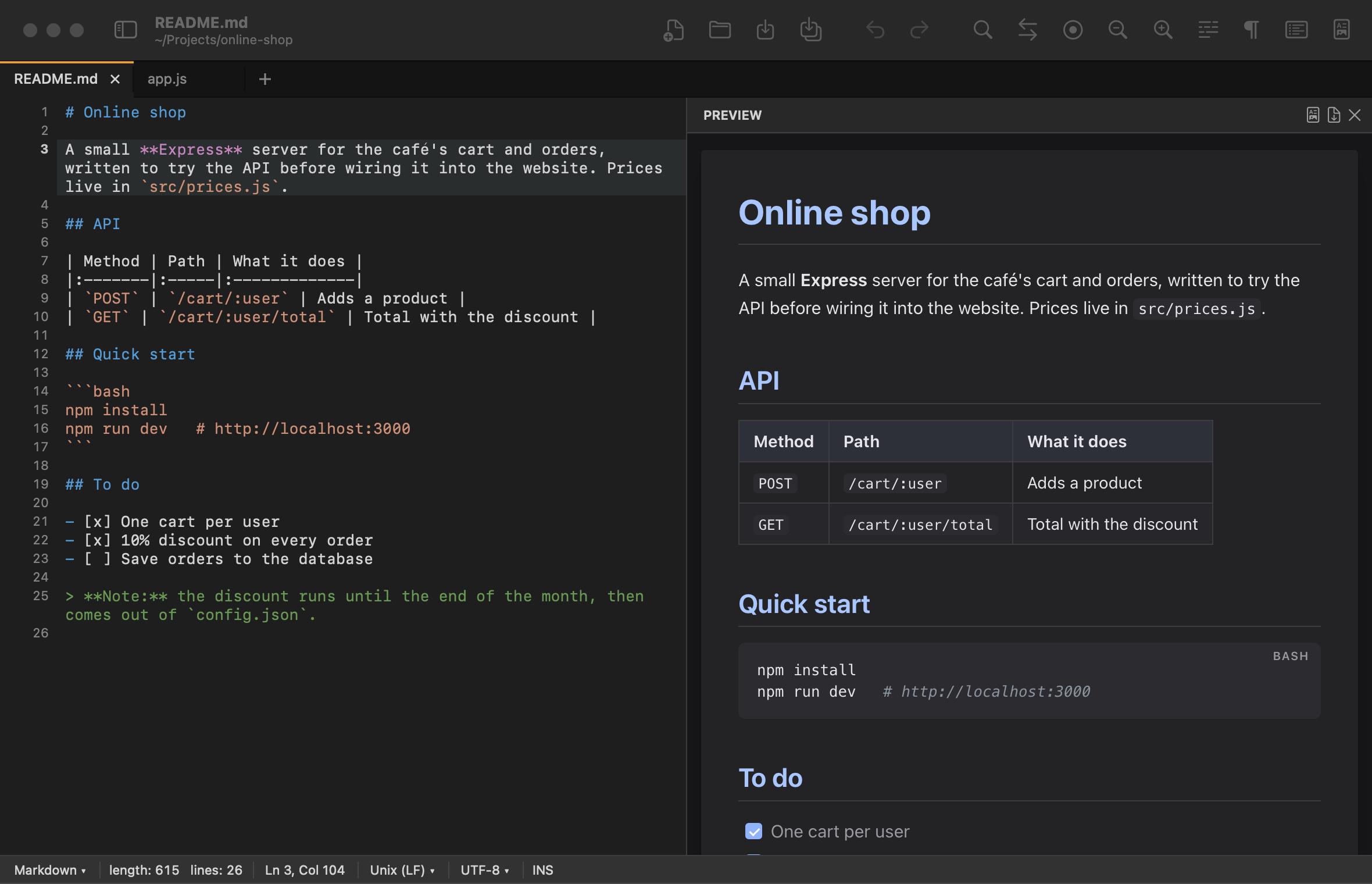
ChatGPT, Claude and the other assistants write in Markdown: summaries, meeting notes, documentation. Press ⇧⌘V and the real page appears next to the text, with headings, tables and lists. It updates as you type and follows you as you scroll.
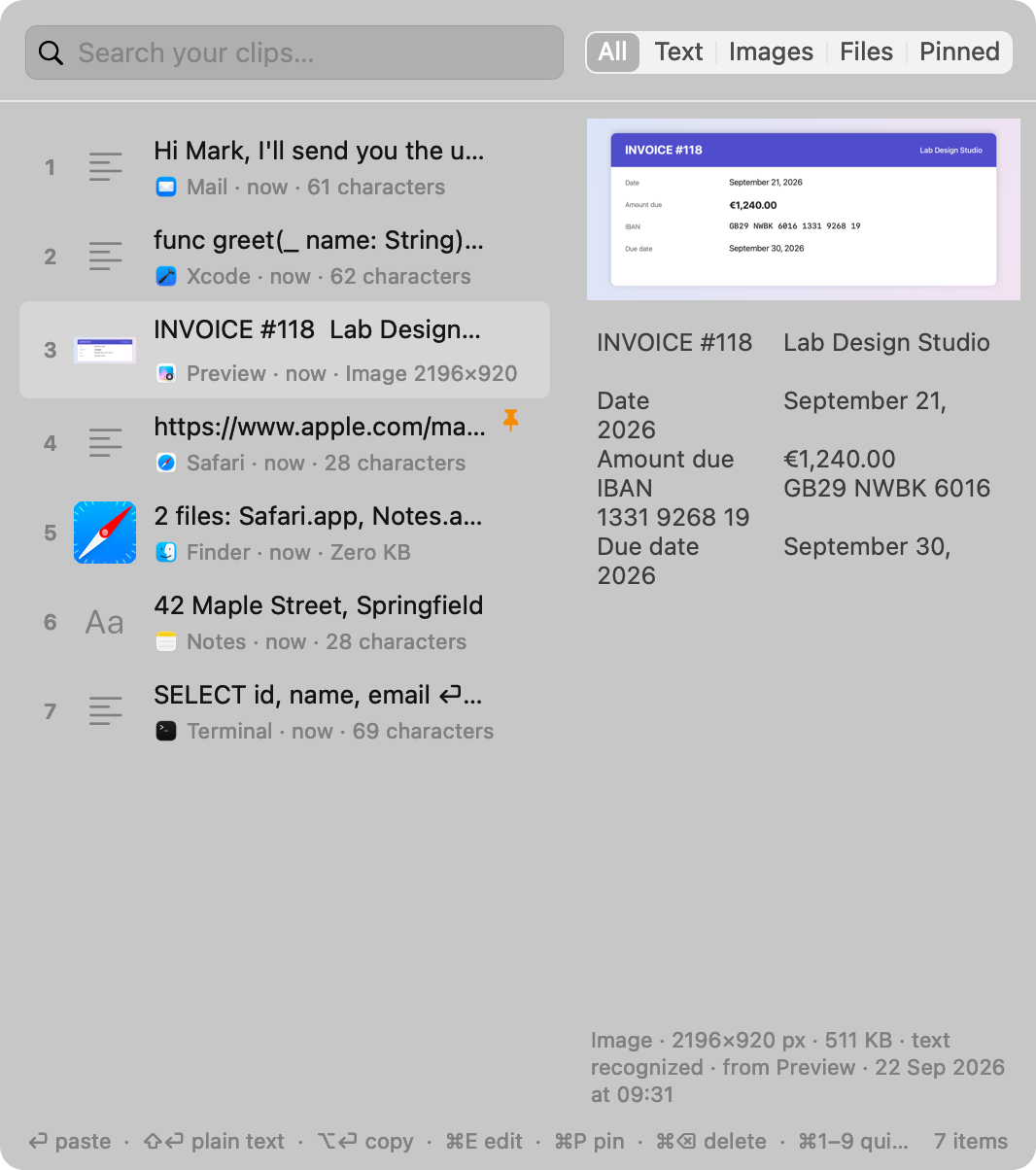
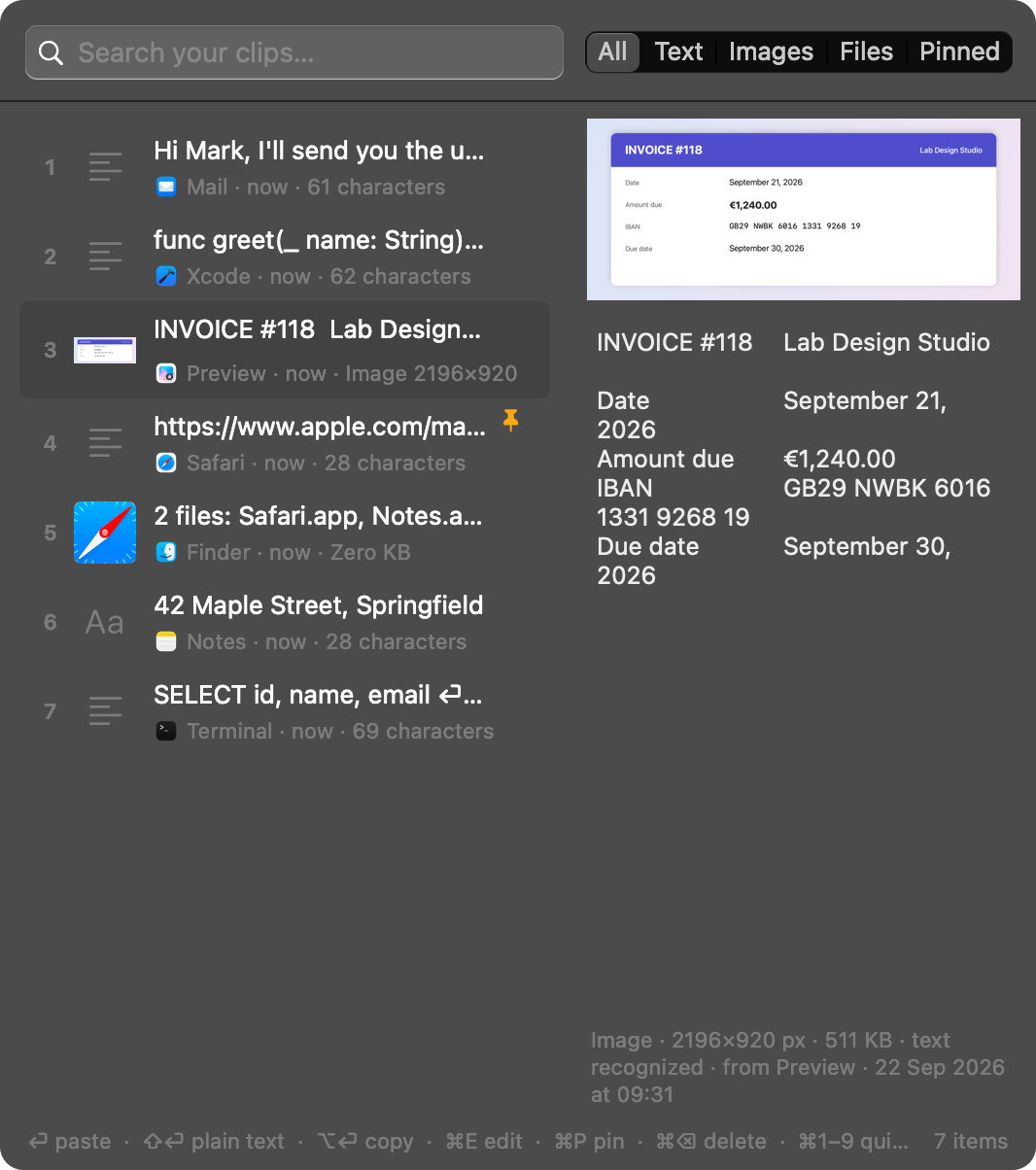
Clip Lab lives in the menu bar and remembers text, pictures and files. Press the shortcut, type two letters, Return: pasted into the app you were working in, with its original formatting.
Try it here: press ⌥⌘V, type “iban” and paste the screenshot’s text with ⇧⏎.
Paste Special with Apple Intelligence: fix, make more formal, translate or summarize a clip before pasting it. On your Mac, offline.
Reads the text in images. Copy a screenshot, a photo of a document or a scan: find the picture by searching for a word in it, and paste its text with ⇧⏎. macOS does it on your Mac: nothing goes online.
Paste as plain text when you don't want a web page's bold.
Paste Special: UPPERCASE, all on one line, camelCase, snake_case, URL, Base64, JSON string.
Pin the addresses, IBANs and sentences you paste all the time: they're never deleted.
Passwords stay out. Copies that password managers mark as confidential aren't recorded, and you can exclude whole apps.
No cloud, no account. The history stays on your Mac, in a file you can clear whenever you like.
Edit, as in Ditto: fix a clip, formatting included, or write a new one from scratch with ⌘N. It stays in its place in the history.
Together with PadLab++: open a clip in a new editor tab and work on it.
// return price * 1; // just once
First you try them for 7 days with every feature. If you like them, a license costs less than a pizza and works on two Macs.
PadLab++Both appsClip LabDownload just the app you want, or both. No sign-up, no credit card.
// frequently asked questions
No. You pay once and the app is yours. Version 1 updates are included.
Nothing is deleted. PadLab++ becomes read-only: you open, read and copy your files, and changes you already made can still be saved; writing and every other feature need a license. Clip Lab stops recording the clipboard: your history stays saved on the Mac and comes back in full, right away, with a license.
Two. If you change computer, deactivate the license from the “License…” menu and activate it on the new Mac.
For a few seconds on first launch, to register the trial, and to activate the license. Then the app confirms it on its own every few days when you're online, and keeps working up to 30 days offline. Your text and your clips never go online.
macOS 14 Sonoma or later, with an Apple processor (M1 and later) or Intel. The apps are in English and Italian: they follow your Mac's language. The assistant with Apple Intelligence needs macOS 26 and Apple silicon.
The apps aren't distributed through the App Store, so on first launch macOS asks for confirmation. Go to System Settings → Privacy & Security and click “Open Anyway”. It only happens the first time.
No. It uses Apple Intelligence, the model macOS keeps on your Mac: the text never leaves the computer and no account is needed. It requires macOS 26 or later on a Mac with Apple silicon and Apple Intelligence turned on; on other Macs everything else works as usual.
No. The text is read by macOS's own text recognition, the same as in Preview and Photos, right on your Mac: your images never leave the computer. It reads English, Italian and some thirty other languages, and you can turn it off in the settings.
No. Copies that password managers mark as confidential aren't recorded, and in the settings you can exclude any app. The history stays on your Mac and isn't sent anywhere.
No. PadLab++ and Clip Lab are independent apps, written from scratch for the Mac. Notepad++ and Ditto are Windows projects by their respective authors: we only mention them so you can tell right away what these apps are like.